
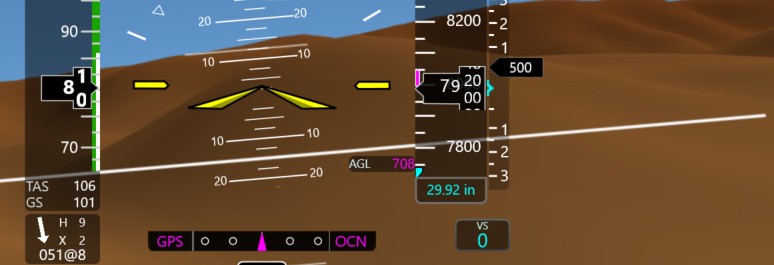
G600 TXi
What's flying, and what's next.
Synthetic Vision is in Beta on the G600 TXi profile. Here's where the rest of the profile stands — and how to get on the Beta to try it.
Send Beta feedbackGetting on the Beta
Three steps, about a minute
Synthetic Vision ships behind the Beta flag in the Hub, so you decide when to try it. Turning Beta off again puts you straight back on the stable build.

1. Open Settings
Click the gear icon in the top-left of the FlightSimBuilder Hub.
2. Toggle Beta on
Switch the Beta option on and close Settings.
3. Restart the Hub
BETA appears next to the Hub logo once it's active.
Roadmap
Where the G600 TXi profile stands
Dates move, order rarely does. This is the sequence we are working through.
G600 TXi profile
The basic G600 TXi profile runs on your TNxi 8X today — no Beta needed.
Synthetic Vision
A 3D terrain view on the PFD, the way the real unit renders it. Live now for anyone running the Hub in Beta mode.
Water bodies
Lakes, rivers and coastlines are the next piece of the synthetic terrain. This is what we are building right now.
Map / Split screen
The next display mode to come to the G600 TXi profile once Synthetic Vision is out of Beta.
Additional display modes
More of the G600 TXi's display modes will follow. What we build first is shaped by what Beta testers ask for.
Something missing, or behaving oddly? Tell us — Beta feedback is what decides the order of this list.
Beta feedback
Tell us what you find
Bugs, rough edges, and the modes you want next — all of it goes on the list. Use the Provide your feedback button at the top of the Hub, or send it straight through the form.